
Calculating Age or Anniversary Years

Ever wanted to calculate someones age or how long they have been with a company?

1. Create a new List.

2. Create a new column, set the type to Date and Time, with the Date and Time Format set to Date Only.
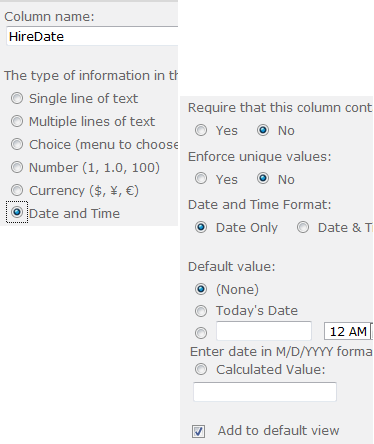
 

3. Create a column and name it Today, data type of Single line of text.


4. Create another column and name it Anniversary, type is Calculated (calculation based on other columns), set the data type to Number, and set the decimal place to 0.

The formula is:

=YEAR(Today)-YEAR(HireDate)-IF(OR(MONTH(Today)<MONTH(HireDate),AND(MONTH(Today)=MONTH(HireDate),DAY(Today)<DAY(HireDate))),1,0)

5. Now you want to delete your Today column that you just created (trust me, just try it).

6. Navigate back to your list and try entering a few values.  In my example, Today is equal to 8/18/2011.

Unable to load workflow actions from the server

Roll into work and a coworker alerts me to the fact that our SharePoint 2010 workflows are not flowing.  When I tried to open any workflow, I was receiving this error:
Unable to load workflow actions from the server….

unable to load workflow actions from the server

I cracked open Fiddler, opened SharePoint Designer, then tried to open a workflow.

On the left side of Fiddler, you will see a bunch of actions, look for one line that turns red and click on it.  In the right window, you should see the error.

example:
soap:ServerException of type ‘Microsoft.SharePoint.SoapServer.SoapServerException’ was thrown.Failed to find the XML file at location ‘14\Template\Features\MissingFeature\feature.xml‘0x80131600……..

So I opened one of my WFE servers and navigated to the folder:
C:\Program Files\Common Files\Microsoft Shared\Web Server Extensions\14\TEMPLATE\FEATURES\MissingFeature

Sure enough, the feature folder in question was missing. To get the missing feature folder, I opened my app server and copied over the missing folder to my WFE servers. No iisreset needed.

Search Web Part Missing

After setting up a new Search Center, I tried to add the Refinement Panel web part, but was unable to locate it.

Navigate to your Site Collection and enable Search Server Web Parts.

From Microsoft:
To activate the Search Server Web Part feature

To open the Site Settings page for the top-level (root) site of the upgraded site collection, append /_layouts/settings.aspx to the root site’s URL, as follows:

http://RootSiteURL/_layouts/settings.aspx

In the Site Collection Administration section of the Site Settings page, click Site collection features.

For Search Server Web Parts, click Activate.

Link for more detail:
http://msdn.microsoft.com/en-us/library/ff512796.aspx

Copy List from 2007 to 2010

I’m recreating a site in SharePoint 2010 and didn’t want to create each List and Library.

I tried exporting a List from SharePoint 2007, then import into SharePoint 2010. No go.
SharePoint 2010 doesn’t like .STP files.

I opened MS Access 2010, imported my SharePoint 2007 List, then created a new List in my SharePoint 2010 site using imported 2007 List.

Like this:
In Access 2010
External Data tab
In the Import and Link section, click on More, then click on SharePoint List.
Choose the Import the source data…. option.
With your new table open, look in the Export section of External Data tab.
Click on More, click on SharePoint List, when the Export – SharePoint Site box opens, enter your destination URL and List name.
Click OK.

You should now have your List duplicated to your SharePoint 2010 site.

Copy DLL from GAC

If you are looking for a way to copy a file / DLL from the GAC, here is your answer:
http://www.tipscentre.net/Details/Copy-DLL-From-GAC-Assembly.aspx

Click Start then click RUN.
Type “C:\windows\assembly\gac” and then press enter key.
GAC folder will be opened.
Go one step up by clicking the “UP” icon in the standard button toolbar.
Then search for your required dll file.
If you find the required dll then just copy it.
Enjoy!

Client does not have permissions to send as this sender At

Error when trying to send an email from PowerShell on Windows Server 2008 R2.

Client does not have permissions to send as this sender
At …………….

FullyQualifiedErrorId : SmtpException,Microsoft.PowerShell.Commands.SendMailMessage

Make sure your IP address is added to the SMTP relay service. My overly friendly Exchange Admin was able to add this to the box.

InfoPath Validate Attachment Control

To validate an Attachment control in InfoPath 2010 you can do one of the following.

Using the controls properties:
Right click on the Attachment control.
Select File Attachment Properties.
In the Validation section, select Cannot be blank.
Click Ok
Test it.

Using a Rule:
(Assume you have a Submit button)
Click on your Submit button.
In the Ribbon, click on Manage Rules.
In the Rules window, click on New.
For the Condition, select your Attachment control, then select is blank or is not blank.

is blank = no attachment
is not blank = a file is attached